




「アップグレードしたiPhoneまたは新しいiPhoneのミラーリングが機能しない」問題を解決するには?

Many users enjoy mirroring their iPhone screen to a Mac or other devices because it makes multitasking easier. Whether you want to reply to messages, watch videos on a larger display, or manage notifications without picking up your phone, screen mirroring provides a seamless way to stay productive. However, after updating iOS or macOS, some users discover that iPhone Mirroring suddenly stops working.
After a system upgrade, compatibility glitches, connection errors, or temporary bugs may cause iPhone Mirroring to stop working, leading to issues such as the iPhone not appearing in the mirroring list, connection failures, or unexpected disconnections.
Fortunately, there are several ways to fix the issue. In this guide, we will explain what iPhone mirroring is, why it may stop working after an update, and the practical solutions you can try.
1. What Is iPhone Mirroring?
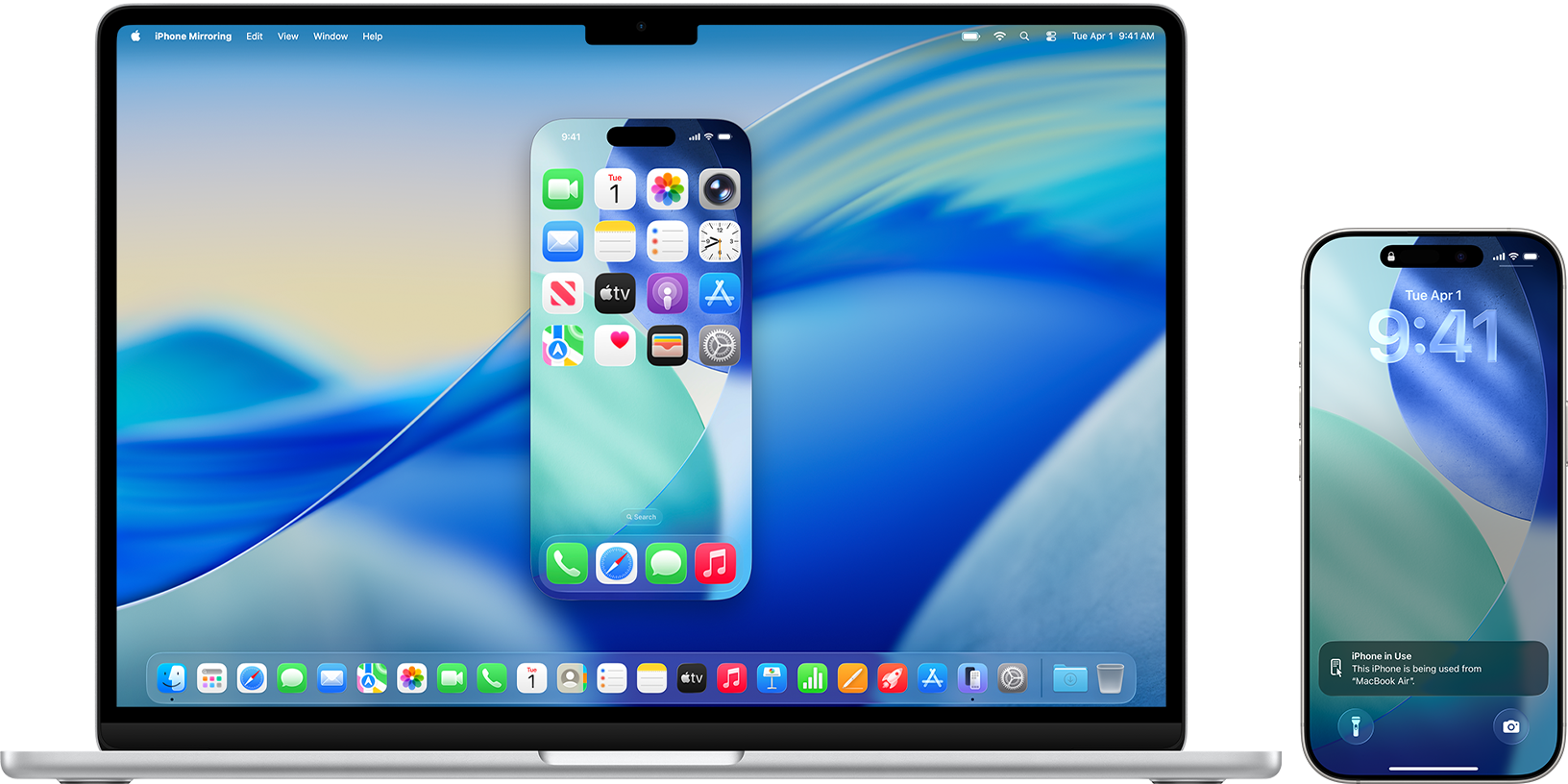
iPhone Mirroring is a feature introduced by macOS Sequoia that allows users to control and view their iPhone directly from a Mac. With this feature, your iPhone screen appears on your Mac desktop, enabling you to interact with apps, notifications, and messages without physically using the phone.
Unlike traditional screen casting, iPhone Mirroring provides full remote interaction. This means you can click, type, and navigate apps using your Mac’s keyboard and trackpad while the iPhone remains locked nearby.
Key Benefits of iPhone Mirroring:
- Convenient multitasking: Use iPhone apps while working on a Mac.
- Better productivity: Reply to messages or manage notifications quickly.
- Larger display: View iPhone content on a bigger screen.
- Seamless Apple ecosystem integration: Works smoothly with Apple’s Continuity features.
However, because this feature relies on network connectivity, device compatibility, and system stability, software updates may sometimes interrupt the connection process.
2. How to Resolve Upgraded iPhone or Now iPhone Mirroring Not Working?
If your iPhone mirroring stopped working after an update, try the following solutions. These steps can resolve most common problems.
2.1 Check Device Compatibility
First, confirm that both devices support the mirroring feature.
Generally, iPhone Mirroring requires:
- An iPhone running iOS 18 or later
- A Mac running macOS Sequoia or later
- Both devices signed into the same Apple ID
- Bluetooth and Wi-Fi enabled
If one device does not meet the system requirements, mirroring may fail.
2.2 Make Sure Both Devices Use the Same Apple ID
iPhone Mirroring relies on Apple’s Continuity framework. Your iPhone and Mac should be signed into the same Apple ID for this feature to work.
To check:
- 開ける 設定 on your iPhone → Tap your Apple ID profile at the top.
- On your Mac, access Apple ID through System Settings.
- Ensure both accounts match.
If they are different, sign out and log in with the same account.
2.3 Enable Wi-Fi and Bluetooth
The mirroring connection depends on wireless communication.
Ensure that:
- Wi-Fi is turned on for both devices
- Bluetooth is enabled
- Both devices are near each other
Sometimes toggling Wi-Fi and Bluetooth off and back on can restore the connection.
2.4 Restart Both Devices
After a system upgrade, temporary bugs may interfere with device communication. Restarting your devices refreshes background processes.
手順:
- Restart your iPhone.
- Restart your Mac.
- Try reconnecting the mirroring feature.
This simple fix resolves many temporary glitches.
2.5 Check Screen Time Restrictions
In some cases, Screen Time restrictions may block mirroring functionality.
To check:
- へ移動 Settings → Screen Time on your iPhone → タップ コンテンツとプライバシーの制限 。
- Ensure that restrictions do not prevent screen sharing or connectivity features.
2.6 Reset Network Settings
If network conflicts occurred during the update, resetting network settings may help.
手順:
へ移動 Settings → General → Transfer or Reset iPhone → タップ Reset → Reset Network Settings → Enter your passcode to confirm.
This will remove saved Wi-Fi passwords but often fixes connectivity problems.
2.7 Update Both Devices
Sometimes the mirroring problem occurs due to software bugs in early versions of a system update.
Check for new updates:
- On your iPhone: Open Settings, tap General, then select Software Update.
- On your Mac: Open System Settings, go to General, and click Software Update.
Installing the latest patch may resolve the issue.
3. Advanced Fix: iPhone Mirror Not Working with AimerLab FixMate
If the methods above do not solve the issue, the problem may be caused by underlying iOS system glitches. In this case, using a professional iOS repair tool such as AimerLab FixMate 助けることができます。
フィックスメイト is designed to repair various iOS system problems without data loss, and it can resolve issues caused by system corruption, failed updates, or firmware bugs.
Key Features of FixMate:
- Fix over 200+ iOS system issues
- Repair iPhones stuck in recovery mode
- Fix update-related bugs
- Enter and exit recovery mode with one click
- Repair iOS without data loss (Standard Repair)
How to Fix iPhone Mirroring Not Working with FixMate:
- ダウンロードとインストール AimerLab FixMate on your computer, then use a USB cable to connect your iPhone to the computer and launch FixMate.
- Select Fix iOS System Issues, then choose Standard Repair. This mode fixes system bugs without erasing your data.
- FixMate will automatically detect your device and prompt you to download the appropriate firmware package.
- Click to start repairing, wait for the process to finish and your iPhone will restart automatically once the repair is complete.
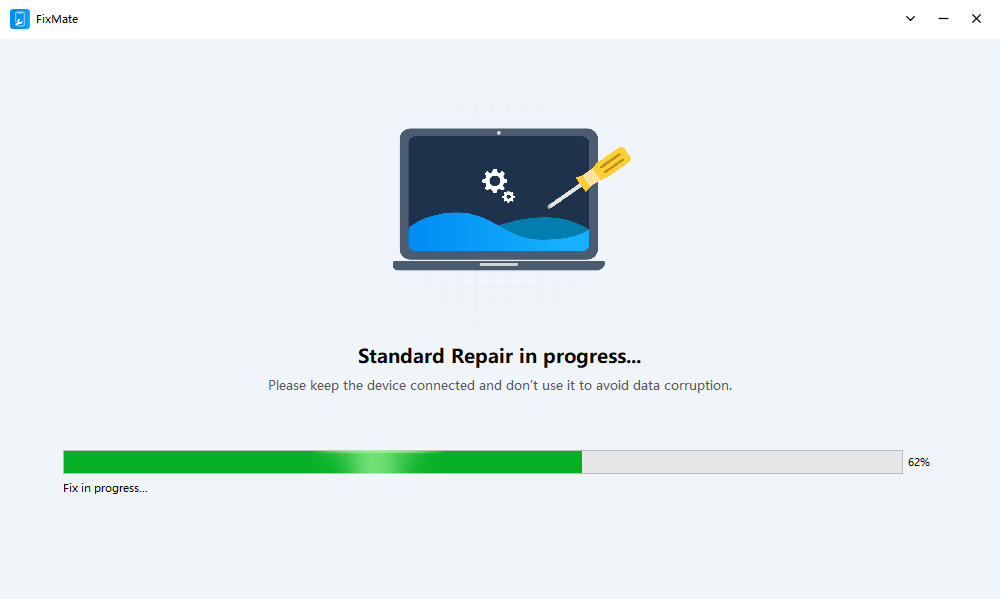
After the repair, try reconnecting iPhone Mirroring. In most cases, the feature will work normally again.
4. 結論
iPhone Mirroring is a powerful feature that allows users to interact with their iPhone directly from a Mac. However, after system updates, many users encounter problems such as connection failures, missing devices, or mirroring sessions that do not start.
Fortunately, most issues can be resolved by checking compatibility, ensuring both devices use the same Apple ID, enabling Wi-Fi and Bluetooth, restarting devices, or resetting network settings. Keeping both iOS and macOS updated can also prevent many software-related bugs.
If the problem persists, it may indicate deeper iOS system errors. In such cases, using a professional repair tool like
AimerLab FixMate
is the most effective solution.
フィックスメイト
can quickly repair system glitches and restore normal device functionality without data loss, making it a reliable option for fixing iPhone mirroring problems after upgrades.