




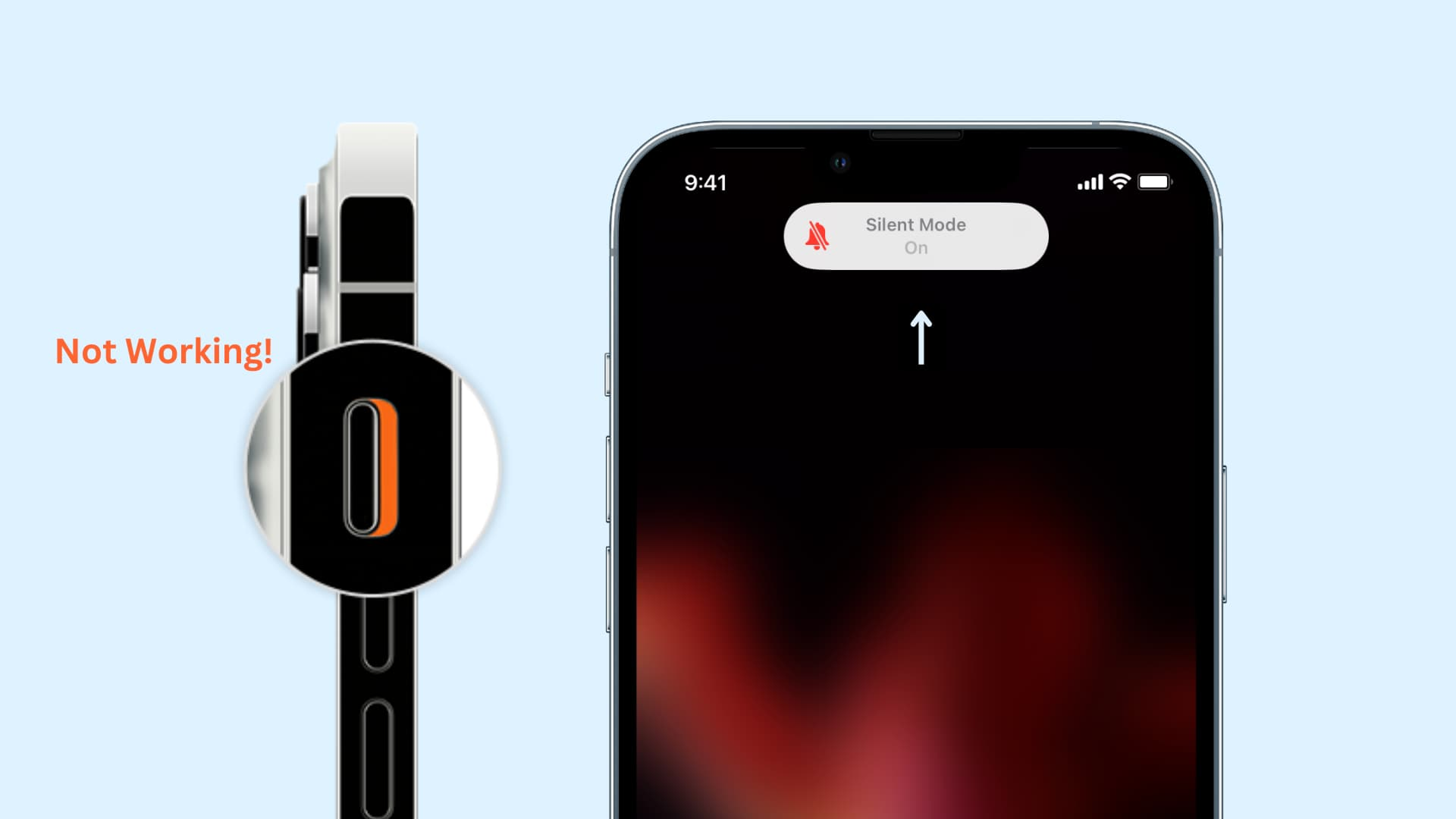
Find the Ring/Silent switch on the left side of your iPhone—if you see orange, Silent Mode is on, so flip the switch to ring mode to enable sound.
Why Is My iPhone Not Ringing? Thy These Effective Solutions To Fix It
コンテンツ
Your iPhone is more than just a phone—it’s a vital tool for staying connected with friends, family, colleagues, and even businesses. It handles calls, messages, emails, and notifications that keep your life running smoothly. So, when your iPhone suddenly stops ringing, it can be a major inconvenience. Missing important calls or alerts can lead to frustration, missed opportunities, and unnecessary stress.
The good news is that an iPhone not ringing is a common problem, and in most cases, it’s caused by settings or minor software glitches that are easy to fix. In some rare situations, the issue may stem from deeper system-level problems. In this article, we’ll explore why your iPhone might not be ringing, how to fix it with simple steps, and introduce an advanced solution that can repair stubborn system issues effectively.
1. Why Is My iPhone Not Ringing?
Here are the most common reasons why your iPhone may not ring:
- Silent Mode Activated: The Ring/Silent switch on the side of your iPhone is on silent (orange).
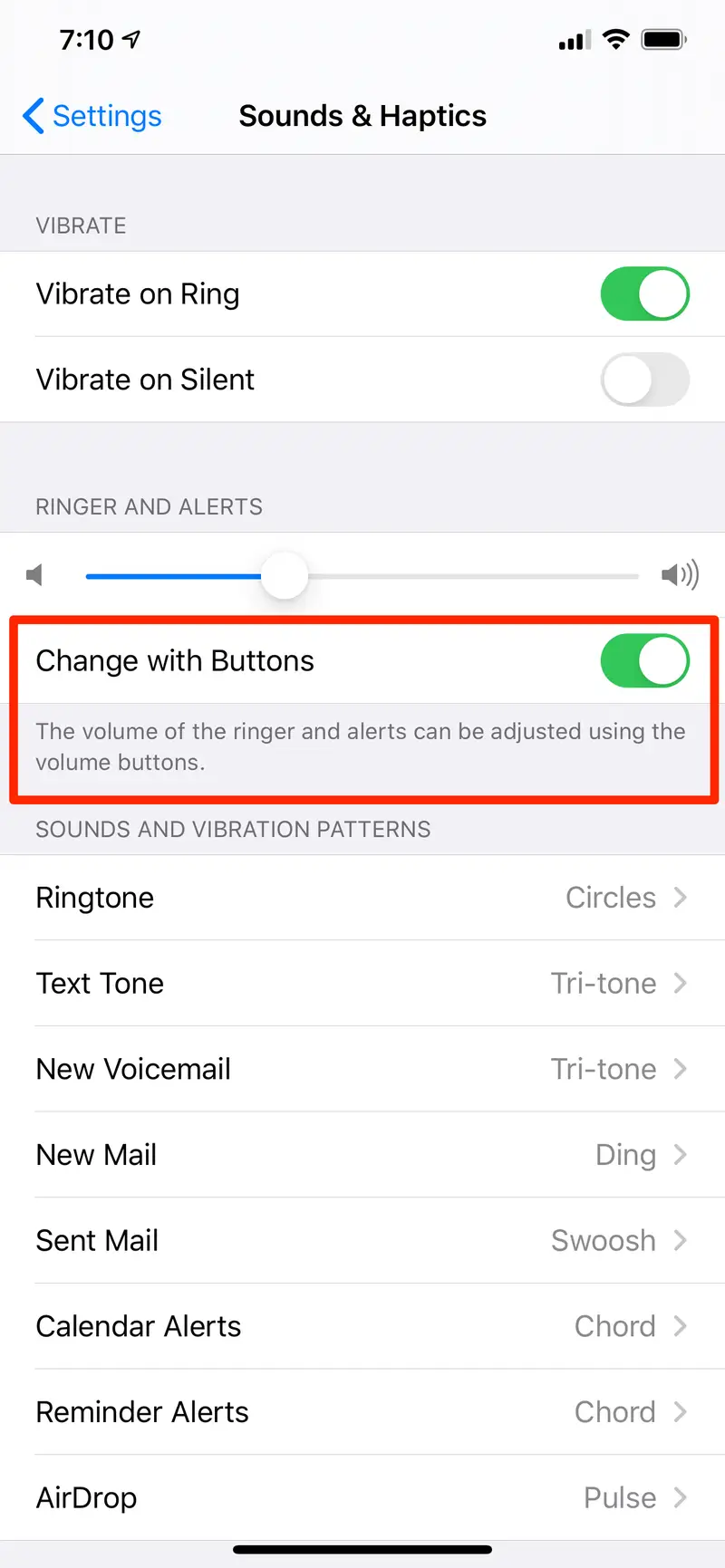
- Volume Too Low: The ringer volume is turned down or muted.
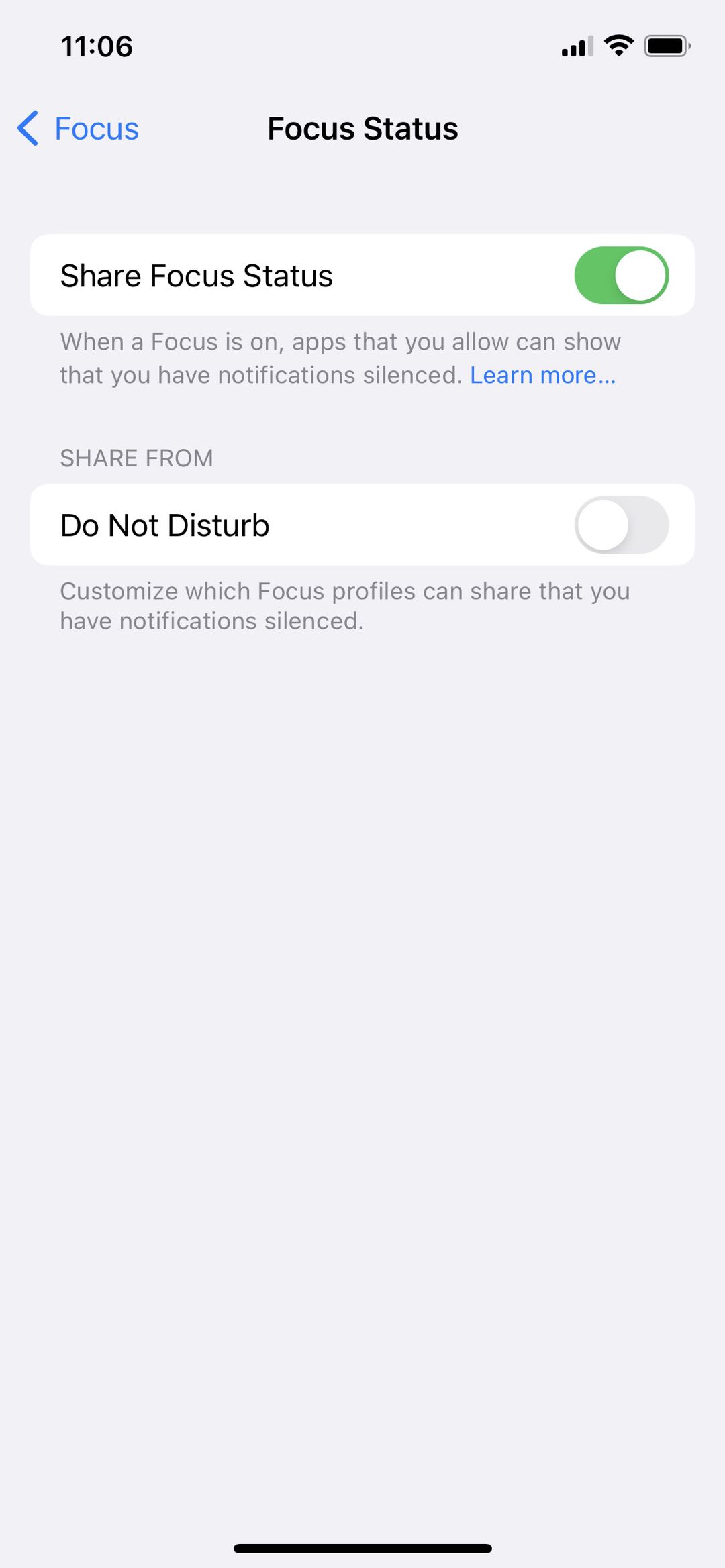
- Do Not Disturb / Focus Mode: Focus settings silence incoming calls and notifications.
- Bluetooth Connected: Calls may route to a connected Bluetooth device instead of your iPhone.
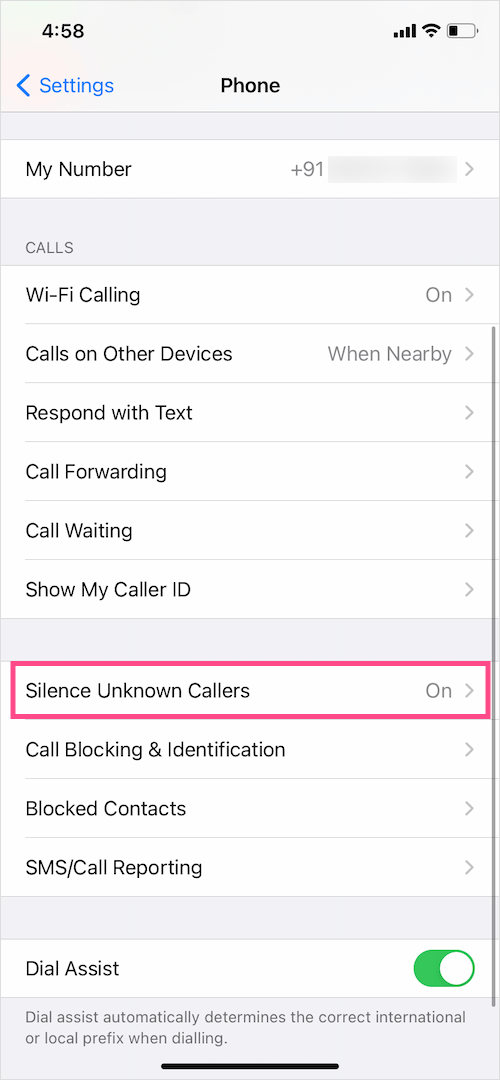
- Silence Unknown Callers: Calls from unknown numbers are automatically silenced.
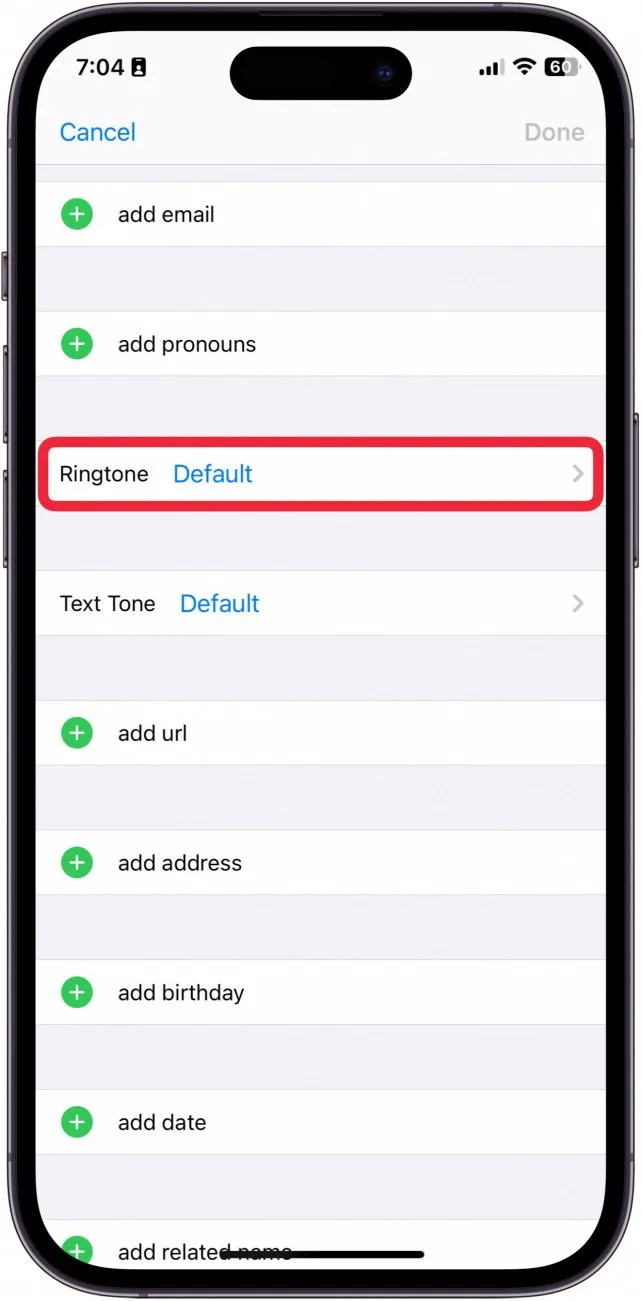
- Custom Ringtones or Contact Settings: Some contacts may have their ringtones set to None.
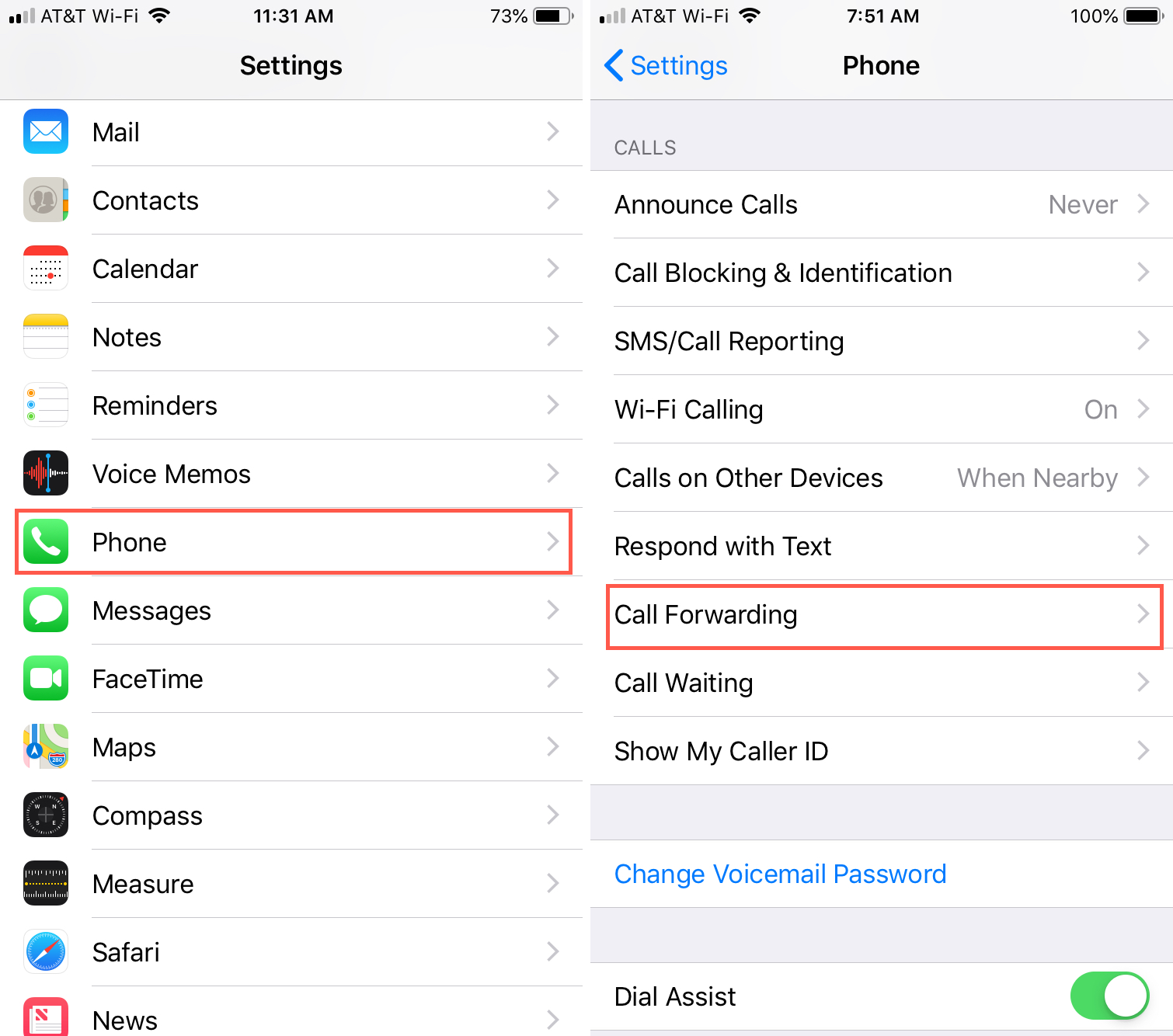
- Call Forwarding Enabled: Incoming calls are redirected to another number.
- ソフトウェアの不具合: iOS updates or app conflicts can cause temporary malfunctions.
- ハードウェアの問題: A damaged speaker or other hardware problems can prevent ringing.
By checking these possible causes, you can usually identify why your iPhone is not ringing and take the appropriate steps to fix it.
2. How to Fix iPhone Not Ringing?
Once you’ve identified the potential causes, follow these step-by-step solutions to restore your iPhone’s ringer functionality:
2.1 Check Silent Mode
2.2 Adjust Volume
2.3 Disable Do Not Disturb / Focus Mode
Open Settings → Focus → Check Do Not Disturb 、 Sleep , or any custom Focus modes. Turn them off, or allow calls from your contacts to ensure important calls ring.
2.4 Disconnect Bluetooth Devices
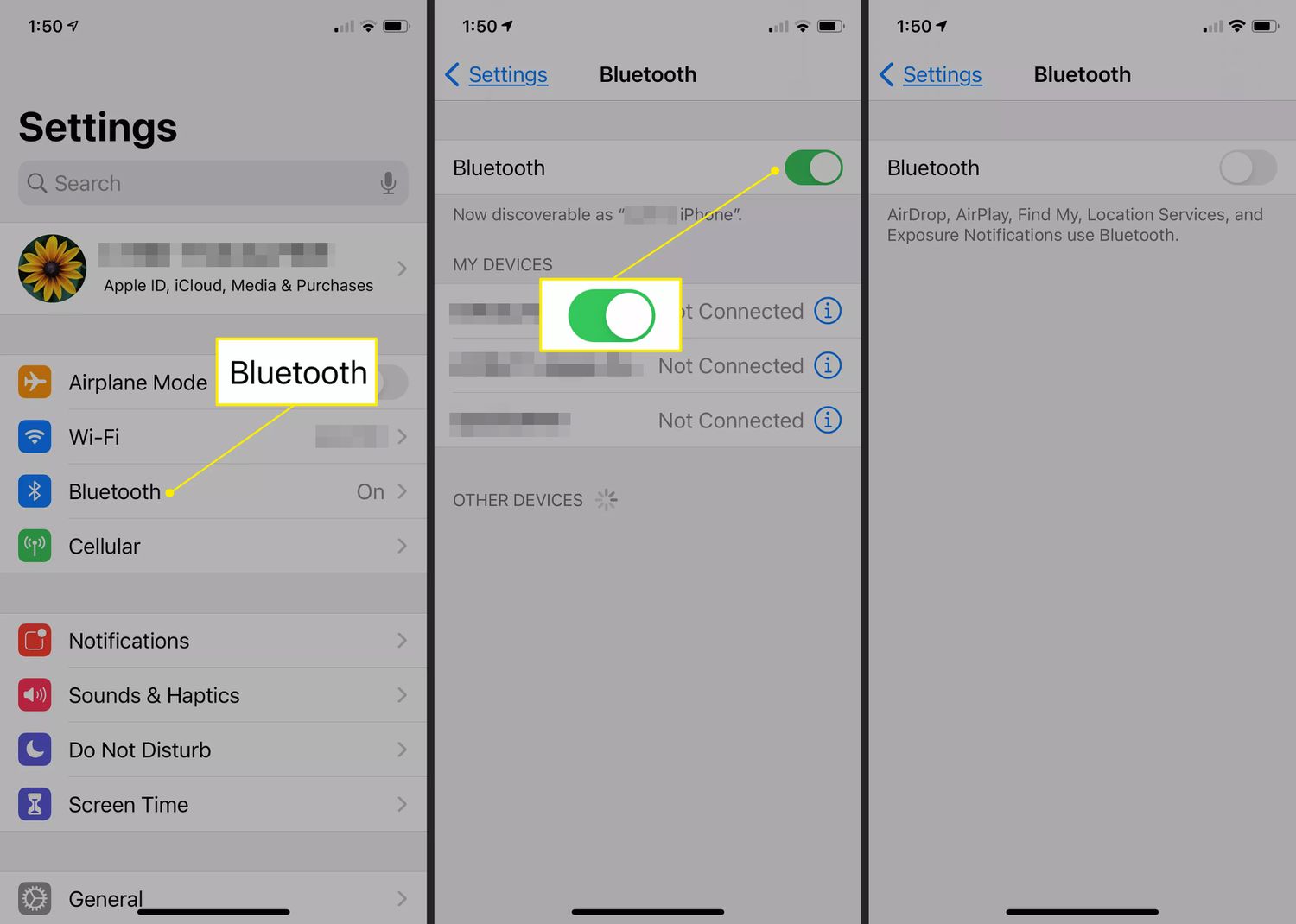
Go to Settings → Bluetooth → Turn off Bluetooth temporarily to ensure calls ring on your iPhone instead of a connected device.
2.5 Check Silence Unknown Callers
2.6 Inspect Contact Ringtones
Open Contacts → Select a contact → Edit → Ringtone. Ensure it isn’t set to None . Assign a ringtone if necessary.
2.7 Turn Off Call Forwarding
Go to Settings → Phone → Call Forwarding. Ensure call forwarding is disabled so incoming calls ring on your iPhone.
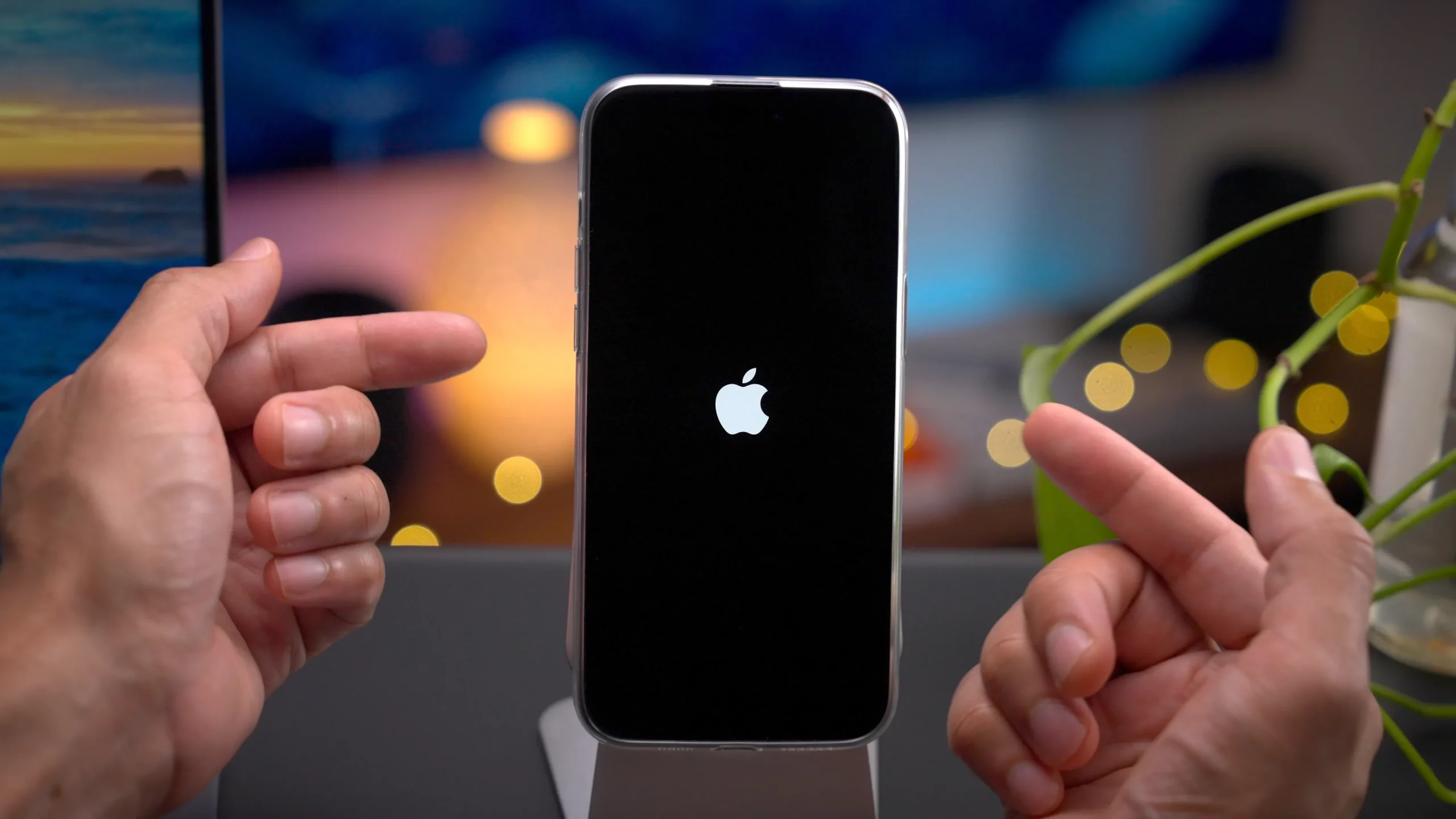
2.8 Restart Your iPhone
2.9 Update iOS
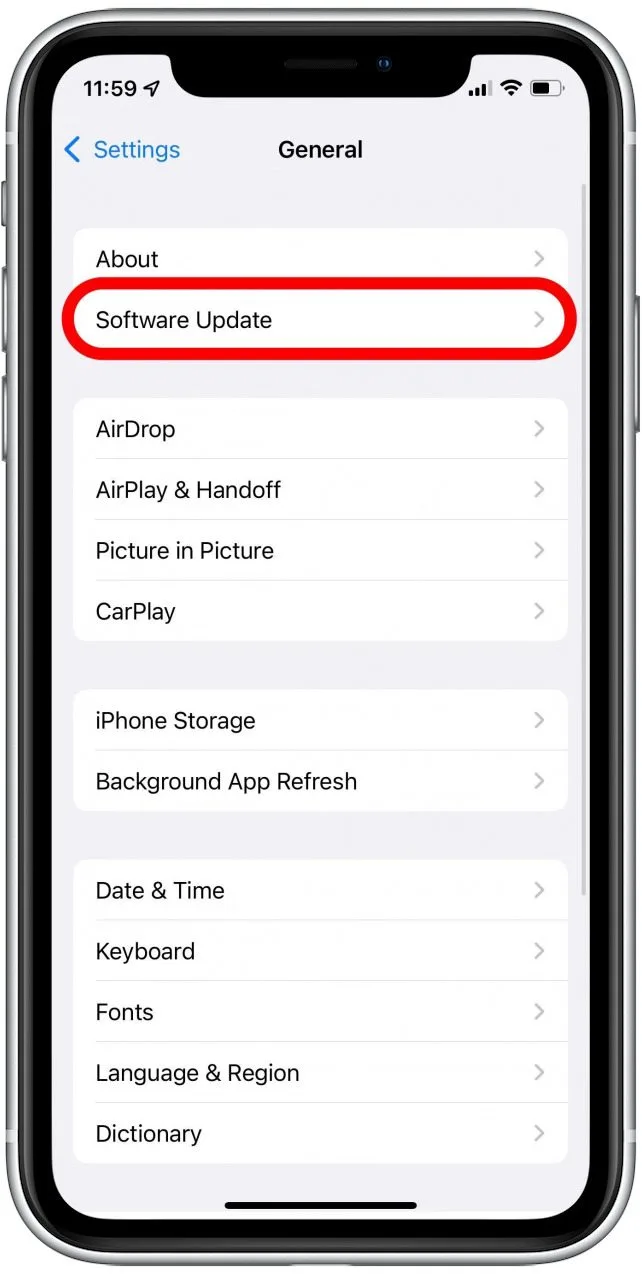
Go to Settings → General → Software Update. Install any available updates to fix bugs that may affect ringing.
2.10 Test Your Speaker
3. Bonus: Advanced Fix for iPhone System Issues with AimerLab FixMate
Sometimes, all of the above steps may not resolve the issue. If your iPhone still doesn’t ring, the problem might be due to deeper system-level issues such as corrupted iOS files or glitches caused by updates. This is where AimerLab FixMate comes in as an advanced solution.
Why Use AimerLab FixMate:
- iOS System Repair: FixMate addresses issues like iPhone stuck on Apple logo, frozen screen, black screen, or non-responsive ringer.
- Safe for Data: Repairs system issues without erasing your personal data.
- Two Repair Modes: Standard Mode fixes common problems, while Advanced Mode addresses severe or complex system glitches.
- User-Friendly: Even users with no technical skills can repair their devices easily.
- High Compatibility: Works with all iPhone models and iOS versions, including the latest updates.
How to Use FixMate to fix the iphone won’t ring issue:
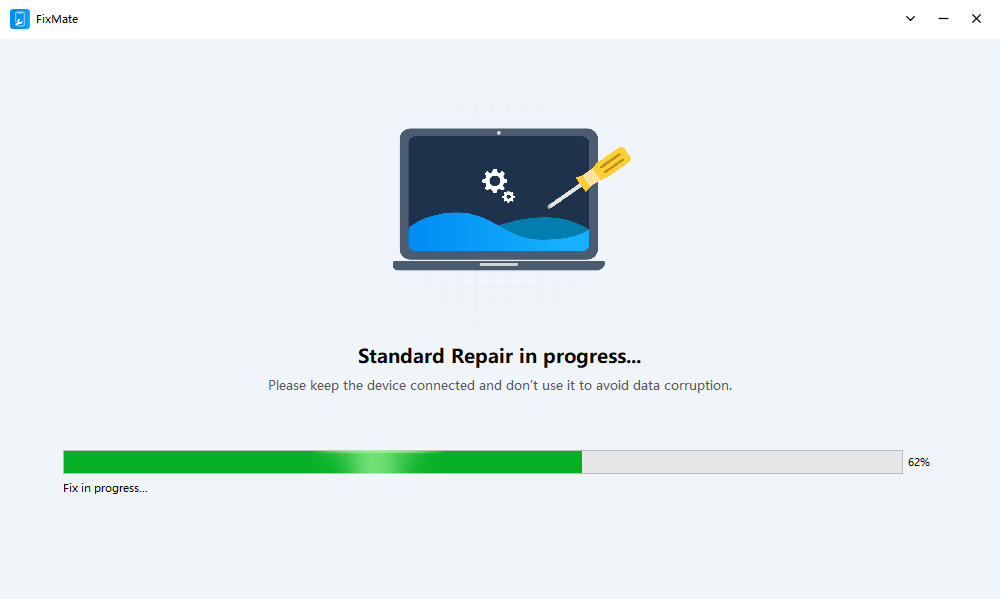
- Install AimerLab FixMate on your computer, launch it and use a USB cable to connect your iPhone to your computer.
- Choose Standard or Advanced Mode depending on your issue.
- FixMate automatically detects your iPhone model and downloads the appropriate firmware.
- Click to start the repair process. Once complete, your iPhone will restart with system issues resolved, restoring ringing functionality.
4. 結論
An iPhone that doesn’t ring can be frustrating, but most issues are caused by settings adjustments, minor glitches, or software conflicts. Checking silent mode, volume, Focus settings, Bluetooth connections, and call forwarding can often resolve the problem. However, if your iPhone continues to fail to ring even after following all these steps, the issue may be due to deeper system-level problems.
For such cases, AimerLab FixMate offers a reliable, safe, and user-friendly solution. It can repair iOS system issues without data loss, making it the go-to tool for resolving stubborn iPhone problems.
If your iPhone is not ringing and standard solutions haven’t worked, using
AimerLab FixMate
is a smart, effective, and highly recommended way to restore your device’s performance and reliability.
人気の記事